

What is a Knowledge Base?
Knowledge bases in BusinessGPT are organized collections of documents such as Word, PDF, or PowerPoint files that form a topic-based knowledge foundation. They allow departments to consolidate their expertise and make it accessible to other employees, improving collaboration and efficiency.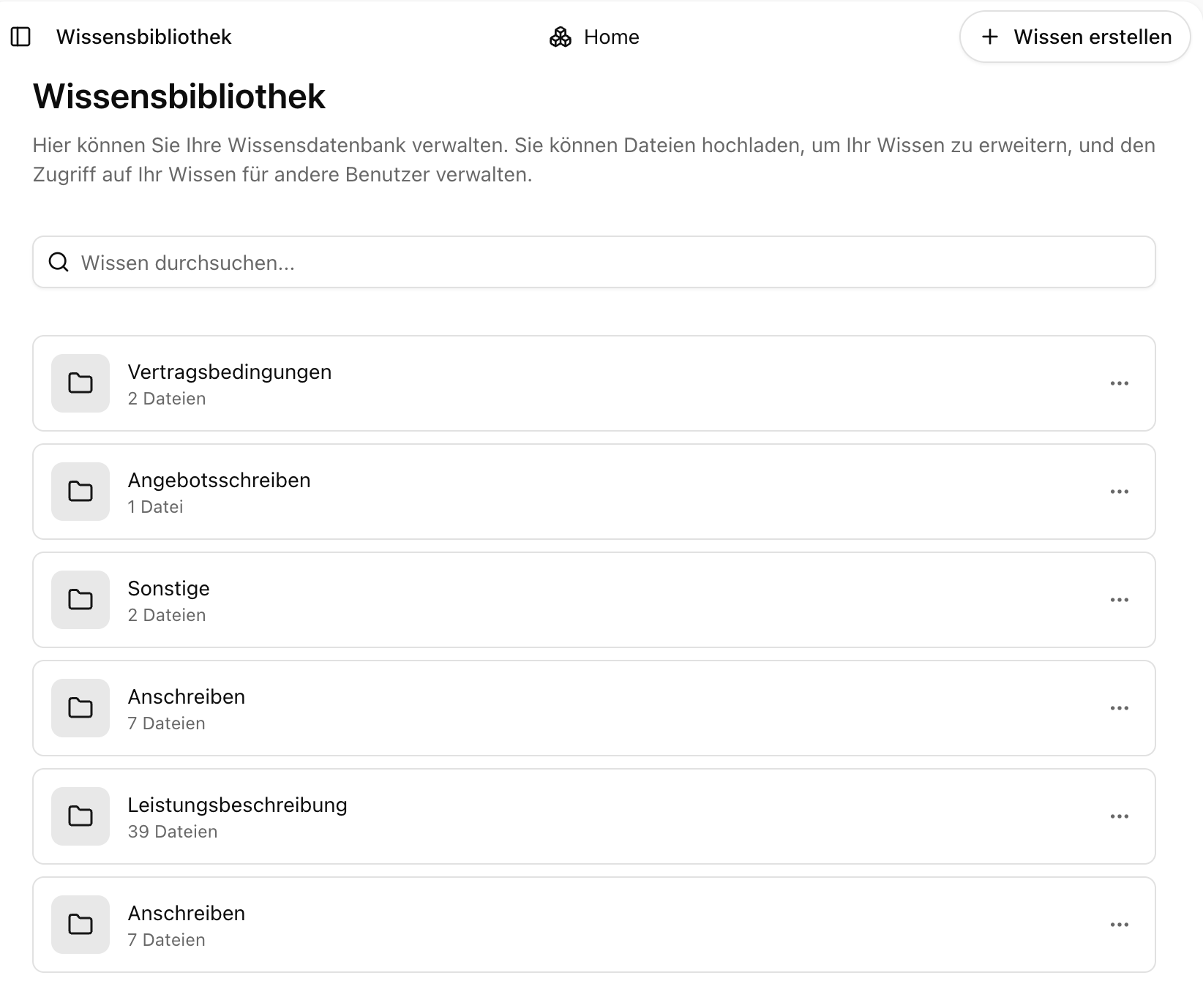
Main Features
Document Collection and Organization
- Upload various document types (PDF, Word, PowerPoint, xlsx)
- Structured organization of documents in folders
- Create topic-specific knowledge collections
Collaborative Knowledge Sharing
- Share knowledge bases with team members
- Set access permissions for different users via the rights-roles concept
- Enable cross-departmental knowledge exchange
- Promote collaborative learning and research
Integrated Analysis
- Direct analysis of uploaded documents with BusinessGPT
- Create summaries of document collections
- Ask specific questions about content
- Receive answers with source citations
How to Use Knowledge Bases
Creating a New Knowledge Base
- Navigate to the “Knowledge Base” section in the side menu
- Click the ”+” symbol to create a new knowledge base
- Enter a meaningful name in the “Title” field
- Optionally, add a description in the “Description” field
- Click “Create” to set up your new knowledge base
Adding Documents to a Knowledge Base
- Open your knowledge base from the overview
- Drag and drop documents into the designated area
- Supported formats include Word, PDF, PowerPoint, and others
- The uploaded documents form the knowledge foundation for this collection
- Organize documents in lists and sublists for better structure
Sharing a Knowledge Base
- Click “Manage Access” on the knowledge base page
- Enter the names or email addresses of colleagues who should have access
- Set appropriate permissions for each user via the rights-roles concept
- Save your sharing settings
Using Knowledge in Chats
Via the Menu
- Open an existing chat or start a new chat
- Click the ”+” symbol to open the dropdown menu
- Select your previously created knowledge base
- Click “Save” to apply the context to your chat
- BusinessGPT will now use the documents in this knowledge base as reference material
Best Practices
For optimal results with knowledge bases:- Create focused collections for specific topics or areas
- Use clear naming conventions for knowledge bases and documents
- Integrate various document types for comprehensive knowledge
- Structure your documents in lists and sublists for better organization
- Update content regularly to maintain relevance
- Share knowledge bases strategically with relevant team members
Example Use Cases
Product Knowledge Base
Product Knowledge Base
Create a knowledge base with product specifications, user manuals, FAQs, and training materials. This centralized knowledge repository helps customer service teams quickly access accurate product information when supporting customers.
Research Collection
Research Collection
Compile market research reports, competitive analyses, and industry trends in a knowledge base. Marketing and strategy teams can use this collection to inform campaign planning and strategic decisions.
Policy and Procedure Library
Policy and Procedure Library
Organize company policies, procedures, and compliance documents in a structured knowledge base. New employees can easily access this information during onboarding, and existing employees can refer to it as needed.
Next Steps
After understanding the knowledge base feature, discover how BusinessGPT can help you with:Assistants
Learn how to use knowledge bases in specialized AI assistants
Prompt Libraries
Learn how to create, manage, and share prompts
Web Search
Learn how to enhance your queries with integrated web search capabilities
Document Processing
Discover how to upload and analyze individual documents