> ## Documentation Index
> Fetch the complete documentation index at: https://docs.eraneos.com/llms.txt
> Use this file to discover all available pages before exploring further.
# Prompt Libraries
> Create, manage, and share prompts for efficient AI interactions
The prompt libraries feature in BusinessGPT allows you to create, organize, and share effective prompts (instructions to the AI) with your team. Prompt libraries serve as collections of proven formulations that ensure consistent and high-quality interactions with the AI.
## What are Prompt Libraries?
Prompt libraries in BusinessGPT are organized collections of predefined prompts optimized for specific tasks or use cases. They allow teams to standardize and reuse successful interaction patterns, improving efficiency and consistency when using BusinessGPT.
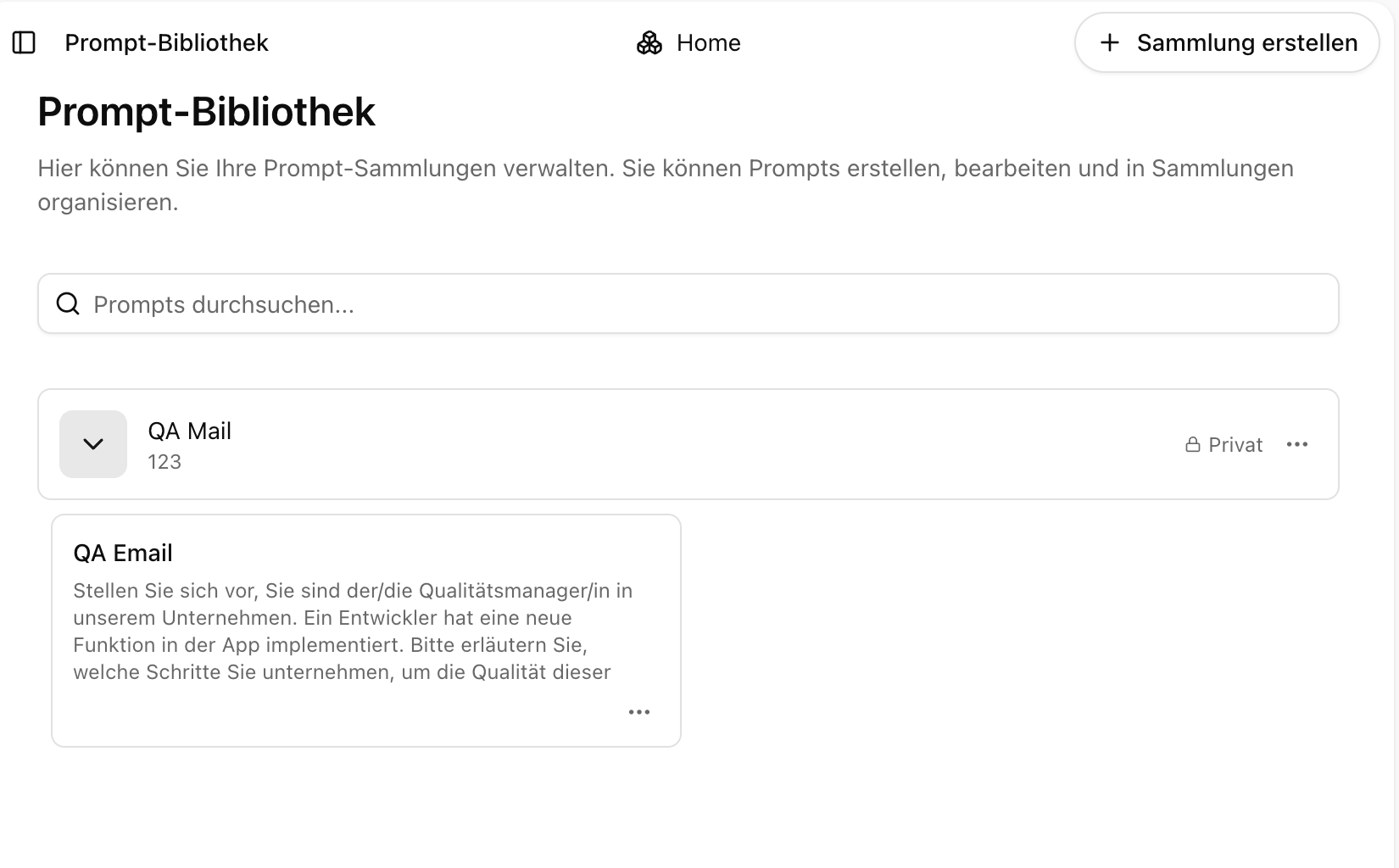 ## Main Features
### Prompt Creation and Organization
* Create customized prompts for various use cases
* Organize prompts in thematic libraries
* Categorize and tag prompts for easy discovery
* Version prompts to track improvements
### Collaborative Sharing
* Share prompt libraries with team members
* Set access permissions for different users via the rights-roles concept
* As an administrator, you can make prompts public company-wide
* Promote the exchange of best practices across the entire organization
### Prompt Optimization
* Test different prompt variants
* Evaluate the effectiveness of prompts
* Iterate prompts based on feedback and results
* Document successful prompt strategies
## How to Use Prompt Libraries
### Creating a New Prompt Library
1. Navigate to the "Prompt Libraries" section in the side menu
2. Click the "+" symbol to create a new library
3. Enter a meaningful name in the "Library Title" field
4. Optionally, add a description in the "Description" field
5. Click "Create" to set up your new prompt library
### Adding Prompts to a Library
1. Open your prompt library from the overview
2. Click "New Prompt" to add a prompt
3. Enter a title and the prompt text
4. Optionally add tags and categories
5. Save the prompt in your library
### Sharing a Prompt Library
1. Click "Manage Access" on the prompt library page
2. Enter the names or email addresses of colleagues who should have access
3. Set appropriate permissions for each user via the rights-roles concept
4. Save your sharing settings
### Public Prompts (Administrators Only)
1. As an administrator, open the prompt library
2. Select the prompt you want to share company-wide
3. Click "Make Public"
4. The prompt is now available to all employees in the company
### Using Prompts in Chats
#### Via the Menu
1. Open an existing chat or start a new chat
2. Click the prompt menu icon
3. Select a prompt from your available libraries
4. The selected prompt is automatically inserted into the chat
5. You can still customize the prompt before sending
#### With Slash Commands (Quick Access)
1. Type `/` in the chat input to show all available prompts
2. Or type `/[search term]` to search for specific prompts (e.g., `/email`)
3. Select the desired prompt from the displayed list
4. The selected prompt is automatically inserted into the chat
5. You can still customize the prompt before sending
These slash commands provide quick and efficient access to your prompt libraries directly while typing, without interrupting the conversation flow.
## Best Practices
For optimal results with prompt libraries:
1. **Create clear, specific prompts** for distinct use cases
2. **Document the purpose of each prompt** in its description
3. **Categorize prompts carefully** for easy discovery
4. **Iterate and improve prompts** based on results
5. **Share successful prompts** with relevant team members
6. **Standardize prompts for recurring tasks** across the organization
## Example Use Cases
Create a library with prompts for common customer inquiries. Customer service representatives can use these predefined prompts to quickly generate consistent and helpful responses.
Collect prompts for analyzing various data types. Analysts can use these prompts to generate reports, identify trends, and interpret data in a standardized way.
Organize prompts for different content formats like blog posts, social media, and emails. Marketing teams can use these prompts to create consistent content that matches the brand voice.
## Next Steps
After understanding the prompt libraries feature, discover how BusinessGPT can help you with:
Learn how to organize documents and use them as knowledge sources
Learn how to configure specialized AI assistants with integrated system instructions
Discover how to communicate effectively with BusinessGPT
## Main Features
### Prompt Creation and Organization
* Create customized prompts for various use cases
* Organize prompts in thematic libraries
* Categorize and tag prompts for easy discovery
* Version prompts to track improvements
### Collaborative Sharing
* Share prompt libraries with team members
* Set access permissions for different users via the rights-roles concept
* As an administrator, you can make prompts public company-wide
* Promote the exchange of best practices across the entire organization
### Prompt Optimization
* Test different prompt variants
* Evaluate the effectiveness of prompts
* Iterate prompts based on feedback and results
* Document successful prompt strategies
## How to Use Prompt Libraries
### Creating a New Prompt Library
1. Navigate to the "Prompt Libraries" section in the side menu
2. Click the "+" symbol to create a new library
3. Enter a meaningful name in the "Library Title" field
4. Optionally, add a description in the "Description" field
5. Click "Create" to set up your new prompt library
### Adding Prompts to a Library
1. Open your prompt library from the overview
2. Click "New Prompt" to add a prompt
3. Enter a title and the prompt text
4. Optionally add tags and categories
5. Save the prompt in your library
### Sharing a Prompt Library
1. Click "Manage Access" on the prompt library page
2. Enter the names or email addresses of colleagues who should have access
3. Set appropriate permissions for each user via the rights-roles concept
4. Save your sharing settings
### Public Prompts (Administrators Only)
1. As an administrator, open the prompt library
2. Select the prompt you want to share company-wide
3. Click "Make Public"
4. The prompt is now available to all employees in the company
### Using Prompts in Chats
#### Via the Menu
1. Open an existing chat or start a new chat
2. Click the prompt menu icon
3. Select a prompt from your available libraries
4. The selected prompt is automatically inserted into the chat
5. You can still customize the prompt before sending
#### With Slash Commands (Quick Access)
1. Type `/` in the chat input to show all available prompts
2. Or type `/[search term]` to search for specific prompts (e.g., `/email`)
3. Select the desired prompt from the displayed list
4. The selected prompt is automatically inserted into the chat
5. You can still customize the prompt before sending
These slash commands provide quick and efficient access to your prompt libraries directly while typing, without interrupting the conversation flow.
## Best Practices
For optimal results with prompt libraries:
1. **Create clear, specific prompts** for distinct use cases
2. **Document the purpose of each prompt** in its description
3. **Categorize prompts carefully** for easy discovery
4. **Iterate and improve prompts** based on results
5. **Share successful prompts** with relevant team members
6. **Standardize prompts for recurring tasks** across the organization
## Example Use Cases
Create a library with prompts for common customer inquiries. Customer service representatives can use these predefined prompts to quickly generate consistent and helpful responses.
Collect prompts for analyzing various data types. Analysts can use these prompts to generate reports, identify trends, and interpret data in a standardized way.
Organize prompts for different content formats like blog posts, social media, and emails. Marketing teams can use these prompts to create consistent content that matches the brand voice.
## Next Steps
After understanding the prompt libraries feature, discover how BusinessGPT can help you with:
Learn how to organize documents and use them as knowledge sources
Learn how to configure specialized AI assistants with integrated system instructions
Discover how to communicate effectively with BusinessGPT