> ## Documentation Index
> Fetch the complete documentation index at: https://docs.eraneos.com/llms.txt
> Use this file to discover all available pages before exploring further.
# Workspaces
> Organize your work with BusinessGPT workspaces
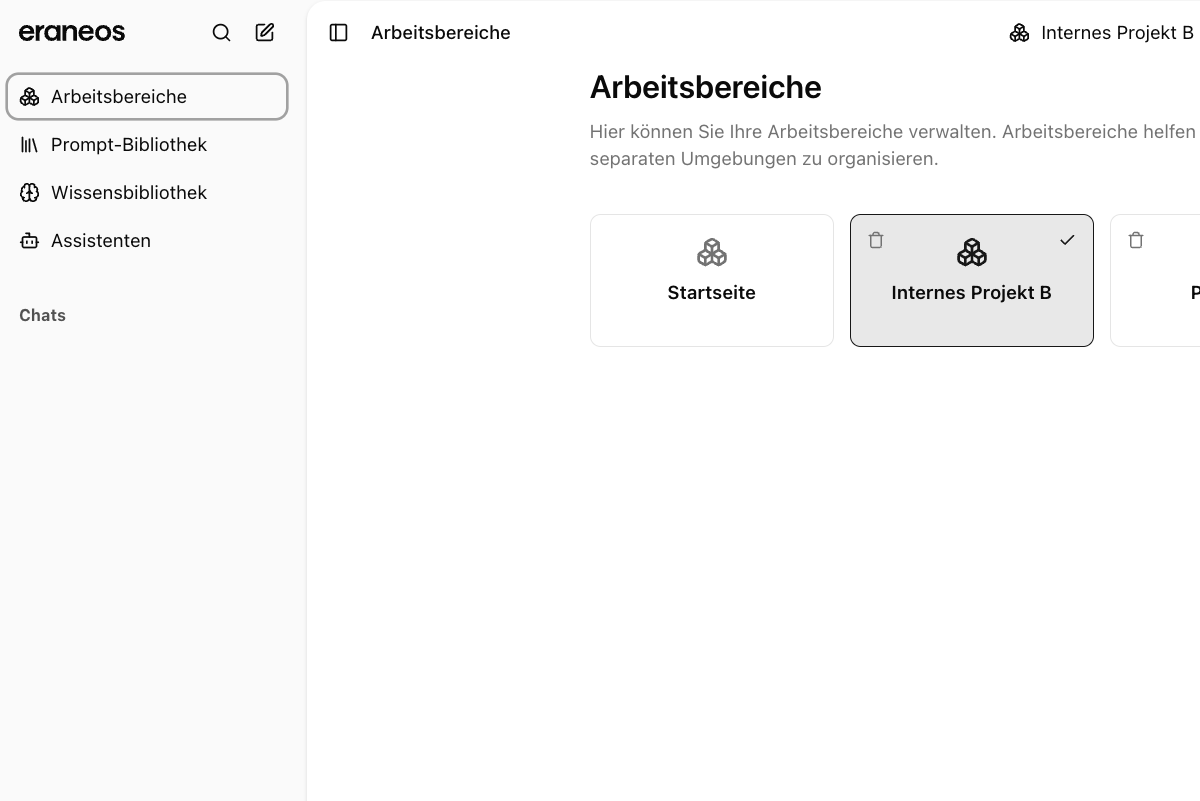
Workspaces in BusinessGPT allow you to organize your personal work into separate contexts. Each workspace serves as a container for related conversations and content, making it easier to switch between different topics, customers, or knowledge bases, assistants, and prompts. Think of workspaces as separate "desks" where you can keep different sets of information organized and easily accessible.
 ## Asset Management Between Workspaces
Different assets in BusinessGPT behave differently with respect to workspaces:
**Prompt Libraries**: Are available in all workspaces and can be used everywhere
**Knowledge Bases**: Are specific to each workspace and are not shared
**Assistants**: Are workspace-specific and must be configured separately for each workspace
**Memory**: Only includes chats from the respective workspace
## Creating a Workspace
To create a new workspace:
1. Navigate to the Workspaces section in the sidebar or user area
2. Click the "Add Workspace" button
3. Enter a descriptive name for your workspace (e.g., "Client A", "Research Project", "Personal Notes")
4. Click "Create" to complete the process
## Workspace Organization
Each workspace provides a clear, separate environment for your work:
Each workspace maintains its own conversation history and context
Keep different topics or customer information cleanly separated
## Workspace Settings
Each workspace has basic configurable settings:
* **General Settings**: Name and description of the workspace
## Organizing Content
Within a workspace, you can organize your personal content:
* **Conversations**: Access your chat history specific to this workspace
* **Notes**: Keep workspace-specific information organized
* **Context**: Maintain separate conversation contexts for different topics
## Switching Between Workspaces
You can easily switch between different workspaces:
1. Click the workspace selector in the user area or top navigation bar
2. Select the desired workspace from the dropdown menu
3. Your context immediately switches to the selected workspace
This feature is particularly useful when working with different clients or knowledge bases, as it allows you to quickly switch between different contexts without mixing information.
## Use Cases for Workspaces
Workspaces are ideal for:
* **Client Management**: Create separate workspaces for different clients to keep their information organized
* **Knowledge Base Organization**: Maintain different workspaces for different knowledge bases, assistants, or prompts
* **Topic Separation**: Keep work-related queries separate from personal research
* **Context Switching**: Quickly switch between different topic areas without losing context
## Best Practices
For optimal workspace management:
* **Create purpose-specific workspaces**: Dedicate workspaces to specific clients, knowledge bases, or topics
* **Use descriptive names**: Choose clear, meaningful names that indicate the workspace's purpose
* **Regular cleanup**: Archive or delete workspaces that are no longer needed
* **Limit the number of workspaces**: Maintain only as many workspaces as you can effectively manage
## Asset Management Between Workspaces
Different assets in BusinessGPT behave differently with respect to workspaces:
**Prompt Libraries**: Are available in all workspaces and can be used everywhere
**Knowledge Bases**: Are specific to each workspace and are not shared
**Assistants**: Are workspace-specific and must be configured separately for each workspace
**Memory**: Only includes chats from the respective workspace
## Creating a Workspace
To create a new workspace:
1. Navigate to the Workspaces section in the sidebar or user area
2. Click the "Add Workspace" button
3. Enter a descriptive name for your workspace (e.g., "Client A", "Research Project", "Personal Notes")
4. Click "Create" to complete the process
## Workspace Organization
Each workspace provides a clear, separate environment for your work:
Each workspace maintains its own conversation history and context
Keep different topics or customer information cleanly separated
## Workspace Settings
Each workspace has basic configurable settings:
* **General Settings**: Name and description of the workspace
## Organizing Content
Within a workspace, you can organize your personal content:
* **Conversations**: Access your chat history specific to this workspace
* **Notes**: Keep workspace-specific information organized
* **Context**: Maintain separate conversation contexts for different topics
## Switching Between Workspaces
You can easily switch between different workspaces:
1. Click the workspace selector in the user area or top navigation bar
2. Select the desired workspace from the dropdown menu
3. Your context immediately switches to the selected workspace
This feature is particularly useful when working with different clients or knowledge bases, as it allows you to quickly switch between different contexts without mixing information.
## Use Cases for Workspaces
Workspaces are ideal for:
* **Client Management**: Create separate workspaces for different clients to keep their information organized
* **Knowledge Base Organization**: Maintain different workspaces for different knowledge bases, assistants, or prompts
* **Topic Separation**: Keep work-related queries separate from personal research
* **Context Switching**: Quickly switch between different topic areas without losing context
## Best Practices
For optimal workspace management:
* **Create purpose-specific workspaces**: Dedicate workspaces to specific clients, knowledge bases, or topics
* **Use descriptive names**: Choose clear, meaningful names that indicate the workspace's purpose
* **Regular cleanup**: Archive or delete workspaces that are no longer needed
* **Limit the number of workspaces**: Maintain only as many workspaces as you can effectively manage